Best Way to Read Scanned PDFs on an E-reader in 2026: The Buyer's Shortlist
The best way to read scanned PDFs on an e-reader is to fix the file once before you send it: crop the margins, turn the pages black and white and add searchable text. FixMyScan does that for a whole book in one upload. The other ways each suit a narrower case: reflowing with k2pdfopt, zooming with your device's own controls, converting to EPUB with Calibre, or moving to a bigger screen.
Key takeaways
- Fixing the file once is the method that helps on every device. FixMyScan crops, cleans and adds searchable text to a whole book of up to 1,000 pages and keeps every page number.
- Reflowing with k2pdfopt gives the biggest text on a small screen. It splits pages into smaller ones, so page numbers no longer match the printed book.
- Your e-reader's own zoom and pan cost nothing and need no preparation. You repeat them on every page, so they suit a few pages, not a whole book.
- Converting to EPUB with Calibre only works when the PDF already has good text. Its manual says image-based documents are not supported, which rules out raw scans.
- A bigger screen such as a Kindle Scribe or reMarkable shows more of each page and lets you write on it. It still shows a grey scan as grey, so it works best with a cleaned file.
What reading a scanned PDF on an e-reader actually involves (and what it doesn’t)
A scanned PDF is a set of page photographs. An e-reader treats each one as a fixed picture: it shrinks the whole page, margins included, to fit the screen, and it can’t change the font size or reflow the words the way it does with an e-book. On a 6 or 7-inch screen, a printed page ends up smaller than it was on paper.
Four things make it worse. The margins, the dark scanner edge and the spine shadow all shrink with the text. Old paper and faint print scan grey, and e-ink shows only shades of grey, so text and page blur together. Large grey images make heavy files that open and turn slowly. And because the pages are pictures, search, highlights and dictionary look-up do nothing until OCR adds a text layer.
So “the best way” comes down to one choice: change the file, or change how you read it. You can change the file once (crop, clean, add text), rebuild it (reflow or convert), or leave it alone and work around it on the device. Each method below takes one of those routes.
None of these methods improve the scan itself beyond what is there: a blurred or very low-resolution scan stays hard to read. And none of them need you to rescan the book.
How we ranked these methods
- Whole book at once: does it fix every page, or does the work repeat page by page?
- Original pages kept: do page numbers, footnotes and pictures stay where they were printed?
- Searchable: do search, highlight and dictionary look-up work afterwards?
- Any device: does it help on Kindle, Kobo, reMarkable and others alike?
- Effort and cost: what you need to install or pay, from each product’s own page, checked 2 Nov 2026.
The best ways to read scanned PDFs on an e-reader in 2026
These are methods, not just products, because the best answer depends on how much of the book you’ll read and what device you have. Each section links to the source for every fact, and says “not checked” where a source is silent. Fixing the file comes first because it is the only method that improves every page on every device. The rest are better for one situation each.
1. Fix the file once with FixMyScan, best for reading whole books on any e-reader
This method changes the pages themselves, once, before the book reaches your device. With FixMyScan you upload a scanned PDF or DjVu file of up to 1,000 pages and draw one crop that applies to every page. The margins, scanner edges and spine shadow go, so the text block fills the screen.
Plain text pages become black on white, which is what e-ink displays most clearly; pages with pictures stay in greyscale so the pictures survive. Tilted pages are straightened and two-page spreads can be split. Every page gets an invisible text layer, so search, highlights and dictionary look-up work. Languages covered: 19 languages, including English, German, French, Latin, Italian and Spanish, plus Fraktur and Ancient Greek mixed with Latin.
Nothing is reflowed, so page numbers, footnotes and pictures stay exactly where they were printed. The result is an ordinary PDF that Kindle, Kindle Scribe, Kobo, reMarkable, Boox, PocketBook and tablets all open. Clean black-and-white pages usually compress far better than grey ones, which helps with Amazon’s 50 MB email limit and with slow page turns.
It costs $9.99 a week or $79.99 a year, with fair use of 5,000 pages a week, one book at a time.
Best suited for: readers who want to read a whole scanned book comfortably and search it. It suits every e-reader, because the fix lives in the file, not the device.
2. Reflow with k2pdfopt, best for the biggest text on a small screen
k2pdfopt is free, open-source software that “optimizes PDF/DJVU files for mobile e-readers (e.g. the Kindle) and smartphones”. It finds the text regions on each page, crops them and re-flows them into smaller pages, even on scanned PDFs, so the text comes out larger than any crop alone can make it. Its page says it works well on multi-column pages, which helps with journals and textbooks.
The trade-off is structure: pages are cropped, reflowed and split into smaller pages, so PDF page numbers no longer match the printed book, and a single printed page may become two or three screens. It can add an optional OCR layer through Tesseract 5.3.0.
It runs on Windows, macOS and Linux. Windows has a built-in window with settings; elsewhere you use command-line options. The latest release is v2.55 from 26 December 2023. Whether it converts pages to pure black and white: not checked.
Best suited for: readers on a 6-inch device who want the largest possible text and don’t cite by page. It suits people happy to adjust settings on a computer.
3. Use your e-reader’s own PDF controls, best for reading a few pages tonight
Every e-reader that opens PDFs lets you work around a raw scan without preparing anything. Turning the device sideways makes the page fill the screen’s width, so the text is larger and you scroll down each page. Zooming enlarges part of the page and you move around it.
Kobo documents this in its help pages: you can zoom and pan through the Reading Menu or with a pinch (the article is several years old, read from a search snippet). Kindles also zoom and rotate PDFs.
The method is free and keeps the original file. But it does nothing for grey pages, adds no searchable text, and the zooming repeats on every page, often several times per page.
Best suited for: reading a chapter or looking something up when there’s no time to prepare the file. It suits occasional use, not a whole book.
4. Convert to EPUB with Calibre, best for PDFs that already contain good text
Calibre is free e-book software (GPL-3.0), started in 2006 by Kovid Goyal, that converts PDFs into EPUB and other reflowable formats. A reflowed book adapts to the screen like any e-book: you choose the font and size.
For scans, the catch is in Calibre’s own conversion manual: PDF input does not support image-based documents, and Calibre uses whatever OCR text the PDF already has, which the manual warns can differ greatly from the page shown. A raw scan has no text, so there is nothing to convert; an OCRed scan converts with every recognition mistake, and footnotes, page numbers and headers often end up mixed into the text.
Amazon’s Send to Kindle accepts EPUB files, so a converted book can reach a Kindle. Calibre’s latest release is 9.17, from 23 October 2026.
Best suited for: PDFs made from digital text, or scans with very clean OCR, where reflowing matters more than the printed layout. It suits novels more than histories, textbooks or anything you need to cite.
5. Read on a bigger screen, best for writing notes on the page
A larger device shows more of a fixed page at once, so a raw scan needs less zooming. The Kindle Scribe and reMarkable are popular with people who read scans, partly because you can write on the PDF.
On a Kindle Scribe, handwriting works directly on PDFs, but Amazon’s help says it is not supported on PDFs loaded over USB-C, so send files through Send to Kindle instead. reMarkable’s help page gives a 100 MB limit for its web app and USB transfer, and points to its mobile and desktop apps for larger files. Kobo sells PDF markup with its Stylus 2 (from a search snippet). Device prices: not checked here.
A bigger screen doesn’t change the file: grey pages stay grey, margins still waste space, and there is no search until OCR is added. It works best combined with method 1.
Best suited for: students and researchers who annotate as they read. It suits people buying a new device anyway, ideally paired with a cleaned file.
Side-by-side comparison
The same criteria as above: original pages kept, searchable afterwards, works on any e-reader, and the cost.
| Method | Original pages kept | Searchable | Any e-reader | Cost |
|---|---|---|---|---|
| FixMyScan | ✓ | ✓ | ✓ | $9.99 a week |
| k2pdfopt reflow | – | ✓ optional OCR | ✓ | Free |
| Device zoom and pan | ✓ | – | ✓ | Free |
| Calibre to EPUB | – | only if the PDF has text | ✓ | Free |
| Bigger screen | ✓ | – | – | Device price not checked |
✓ yes · – no · “not checked” means we haven’t confirmed it. Checked 2 Nov 2026.
Which method fits your use case
| If you… | Pick | Why |
|---|---|---|
| want to read a whole scanned book on any e-reader | FixMyScan | One crop, clean pages and search, pages kept |
| read on a 6-inch device and want the biggest text | k2pdfopt | Reflows text into smaller pages |
| need a few pages tonight | Device zoom and pan | No preparation |
| have a PDF made from digital text | Calibre to EPUB | Reflows like an e-book |
| annotate as you read | Kindle Scribe or reMarkable | Bigger screen, writing on the PDF |
What results look like
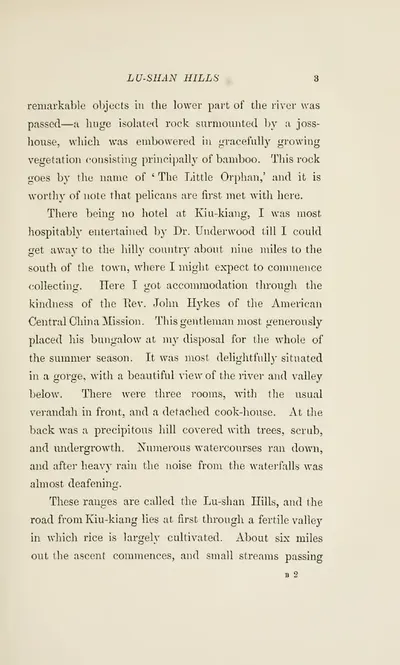 As scanned
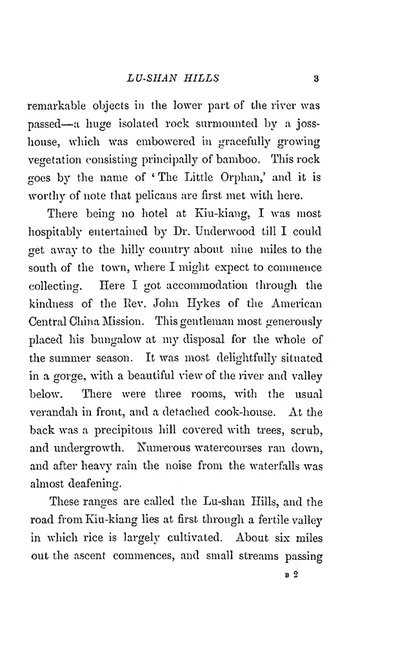 After FixMyScan
A page from an old travel book: the raw scan, then the cleaned, cropped page.
On an e-reader the crop is what you notice first: the text block fills the screen, so the words are bigger at normal size. More pairs are on the samples page.
FAQ
How do I make a scanned PDF readable on a Kindle?
Crop the margins so the text fills the screen, turn grey pages black and white, and add OCR text. Then send it as a PDF through Send to Kindle, which takes up to 200 MB on its website.
How do I make PDF text bigger on an e-reader?
An e-reader can only zoom the whole page of a PDF. Cropping the margins makes the text bigger at normal size; reflowing with k2pdfopt makes it bigger still, at the cost of the original page layout.
Is PDF or EPUB better for a scanned book?
For a scan, a cleaned PDF is usually safer. EPUB needs the text to be rebuilt by OCR, which can drop lines and move footnotes, while a PDF keeps every page as printed.
What is the best e-reader for reading PDFs?
A bigger screen shows more of each fixed page, which is why people reading scans often choose a Kindle Scribe or reMarkable. On any device, a cropped and cleaned PDF reads better than a raw scan.
Can I read a scanned PDF on a Kobo?
Yes. Kobo eReaders open PDFs, and you can zoom and pan with a pinch or the Reading Menu. A cropped, cleaned PDF needs much less zooming.
Why is my scanned PDF so slow on my e-reader?
Grey page images make large files, which are heavy for an e-reader to open and turn. A black-and-white version of the same book is usually much smaller.
Can I write on a scanned PDF on a Kindle Scribe?
Yes, on PDFs sent through Send to Kindle. Amazon says handwriting is not supported on PDFs loaded over USB-C.
How do I get a scanned PDF onto a reMarkable?
Use the reMarkable web app or USB for files up to 100 MB, or the mobile and desktop apps for larger files, according to reMarkable's help page.
Try FixMyScan on your own book
Choose the scan you gave up reading. Upload the PDF or DjVu. Set one crop for every page. Send the finished PDF to your Kindle, Kobo or reMarkable and read it at normal size. Fix your scan now.